Accruent Lucernex 26.11 Release Notes
We're delivering this automatic upgrade to these environments:
-
Dedicated Train: November 4, 2026
-
UAT (Train): November 6, 2026
-
Production: November 20, 2026
Starting with the first Lucernex release of 2027, we will deploy updates and hotfixes to train environments and non-production environments during US business hours, from 9:00 AM to 3:00 PM Central Time (CT).
Each train deployment happens at least one week before the production release:
-
Dedicated Train: Wednesday
-
Shared Train: Friday
The schedule for production deployments and maintenance stays the same.
The upgrade includes:
-
Punch lists: Create and manage punch lists in projects and capital projects to finish work on schedule.
-
Lucernex ATLAS: Improved mapping, templates, filters, and user management. Import percent rent from Lucernex ATLAS with the correct breakpoint type.
-
Crue: Get quick answers from your AI assistant without leaving your page.
-
Vendor reports: Share reports with vendors so each vendor sees only their own data.
-
Manitoba time zone: Dates and times for Manitoba stay correct all year.
Punch lists
LUC-19909, LUC-20417, LUC-20251, LUC-20252, LUC-20061, LUC-20062, LUC-21175
Keep your construction projects running smoothly and finish on schedule with the new Punch List tab in a project or capital project.
Create, assign, and track punch list items directly inside your projects and capital projects.
-
Organize all remaining work: Create one or multiple punch lists for any project to capture every detail before final sign-off.
-
Save time with automatic status updates: Punch list statuses update automatically as team members complete individual tasks.
-
Edit quickly in the grid: Update task names, statuses, due dates, and notes right in the grid. Your changes save automatically.
-
Keep everyone aligned: Assign tasks to specific team members. Attach photos and documents.
Go to Projects or Capital Projects > Details > Punch List.
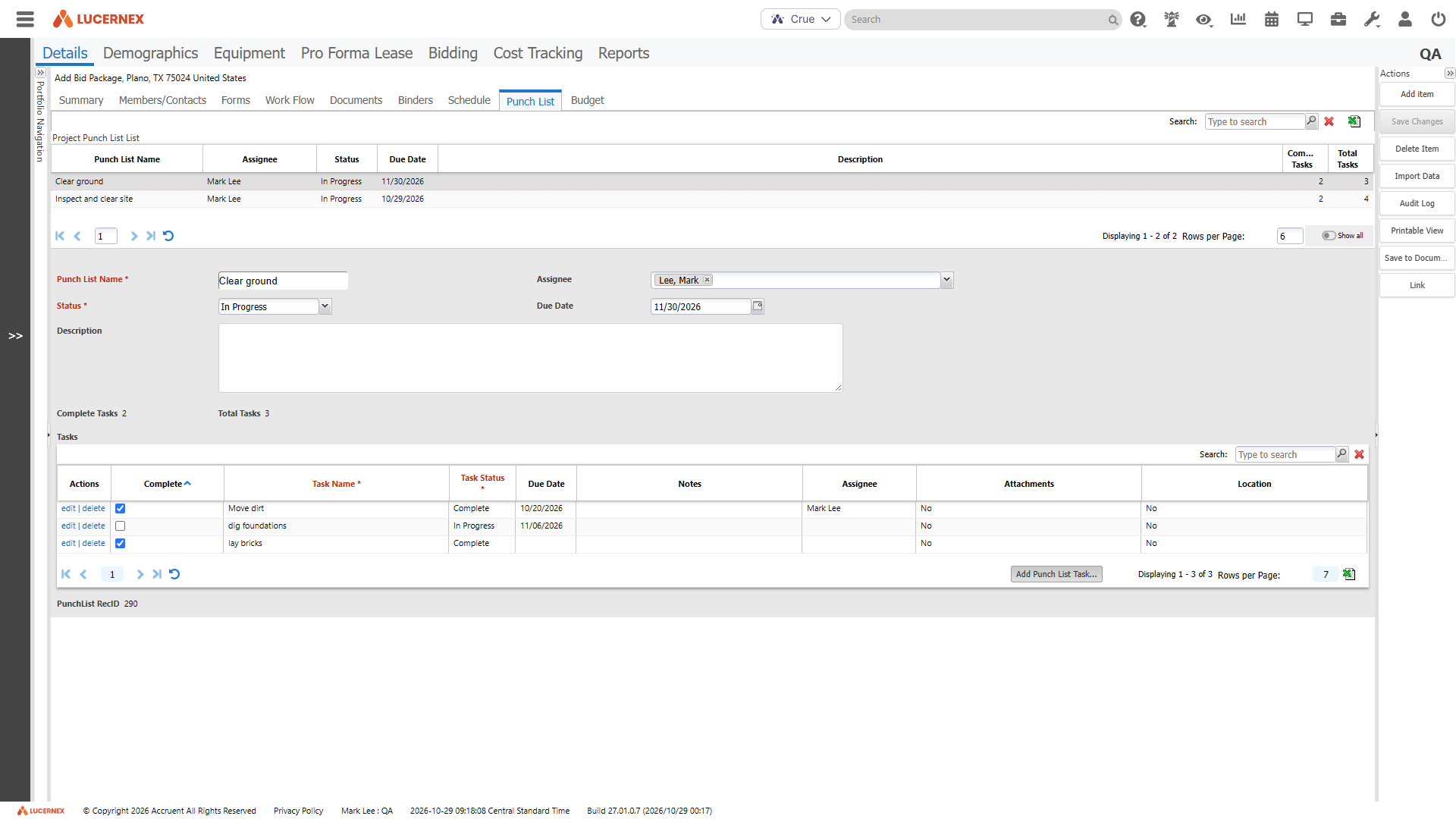
Create a punch list
-
In the Actions menu, select Add Item.
-
On the Punch List tab, select Create New Punch List.
-
Complete the form:
-
Punch List Name
-
Assignee: Select a member to assign the list to.
-
Status: Select the initial status for the list.
-
Due Date: Optionally, enter a date to complete the list by. If the list is not complete by this date, status changes to Past Due.
-
Description
-
-
In the Actions menu, select Save Changes.
Next, add tasks to the list.
Add tasks
-
In Capital Project Punch List or Project Punch List, select the punch list to update.
-
In Punch List Tasks, select Add punch list task.
-
Enter the task details:
-
Task Name: Enter a clear description of the work needed. This is required.
-
Task Status: Select an initial status for the task. The default is Not Started. This is required.
-
Due Date: Select the date the task must be finished.
-
Notes: Add extra instructions or context.
-
Latitude / Longitude: Enter optional location coordinates (latitude and longitude) for on-site work.
-
Assignee: Select the team member responsible for completing the task.
-
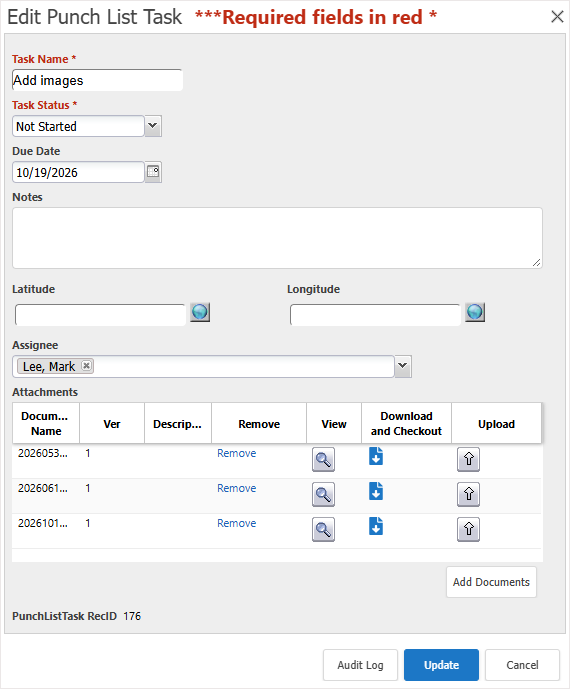
Attachments: Select Add document to upload photos or files and attach them to the task:
-
Select a folder to upload documents to, then select Upload.
-
Select each document to add.
To add every document in a folder, select that folder.
-
Select Add Selected Documents.
The Attachments pane lists the documents.
-
-
-
Review the documents:
-
Select the Remove link to remove a document.
-
Select Download to download a document to your browser's download folder.
-
Select Upload to upload a newer version of the document.
-
-
Select Add.
Edit tasks
To keep your punch list up to date, edit tasks in the grid, or open a task to see all its details on one screen.
-
Edit in the grid: In Punch List Tasks, select the Task Name, Task Status, Due Date, or Notes of a task and enter your change. Your change saves automatically.
-
Mark tasks complete: Select Complete next to a task to change its status to Complete. Clear Complete to change the status back to Not Started.
To edit tasks, you need permission to edit the punch list.
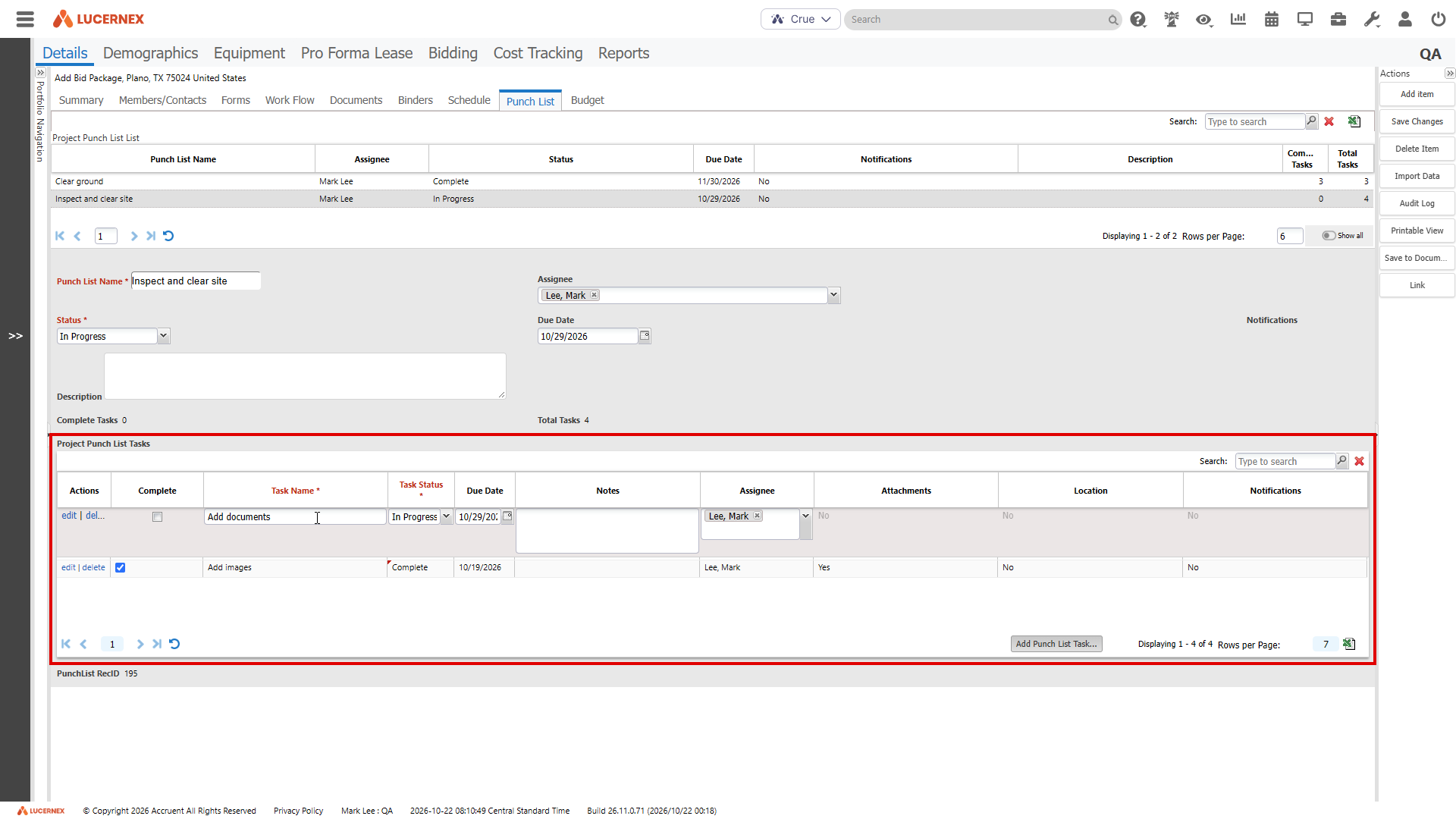
To edit all task details in one window:
-
In Capital Project Punch List or Project Punch List, select the punch list to update.
-
In Punch List Tasks, locate the task, then select Edit.
-
Edit the task details, then select Update.
Delete tasks
Keep your punch list clear and focused by removing tasks you no longer need. Delete one task or every task in a punch list at once.
This removes tasks permanently. The system asks you to confirm before it deletes tasks.
To delete tasks, you need permission to delete punch list items.
-
In Punch List Tasks, locate the task.
-
Select Delete, and then Yes to confirm.
Automatic punch list status updates
Punch list status now updates on its own as your team works on tasks. Spend less time on updates and always know the status of your punch list.
-
Start work: When someone changes the status of a task in a punch list with status Not Started, that punch list changes to In Progress.
If you add a new task with status Not Started, the punch list status doesn't change.
-
Stay on schedule: If a punch list has a due date and isn't complete after that date passes, it changes to Past Due.
This happens right away if you create or edit a punch list with a due date in the past. Lucernex also checks due dates each day.
Task due dates don't change the punch list status.
If you move the due date of a Past Due punch list to a later date, it changes to In Progress if there are punch list tasks. If there are no punch list tasks, it changes to Not Started.
If you change the due date of a punch list that's complete or blocked, its status is unchanged.
-
Finish work: When all tasks in the punch list are complete, the punch list changes to Complete.
To complete a task, select its check box or change its Task Status.
This works even if you set the punch list status yourself. For example, a Blocked punch list changes to Complete when all its tasks are Complete.
A Complete punch list never changes to Past Due. If you reopen a task, the punch list changes back to In Progress.
The new status appears as soon as you save a task. You don't need to refresh the page. If you can edit the punch list, you can change its status at any time.
Lucernex ATLAS
LUC-12051
Abstract leases faster and bring more accurate lease data into Lucernex. Lucernex ATLAS now includes new master templates and more fields in the Core category. You can also filter and sort on the Your Leases page, control who has access, and import percent rent with the correct breakpoint type.
When you select Crue, ATLAS options now appear under the title Lucernex ATLAS instead of Lease AI.
Lucernex ATLAS is available at additional cost. Contact your Accruent account manager to purchase.
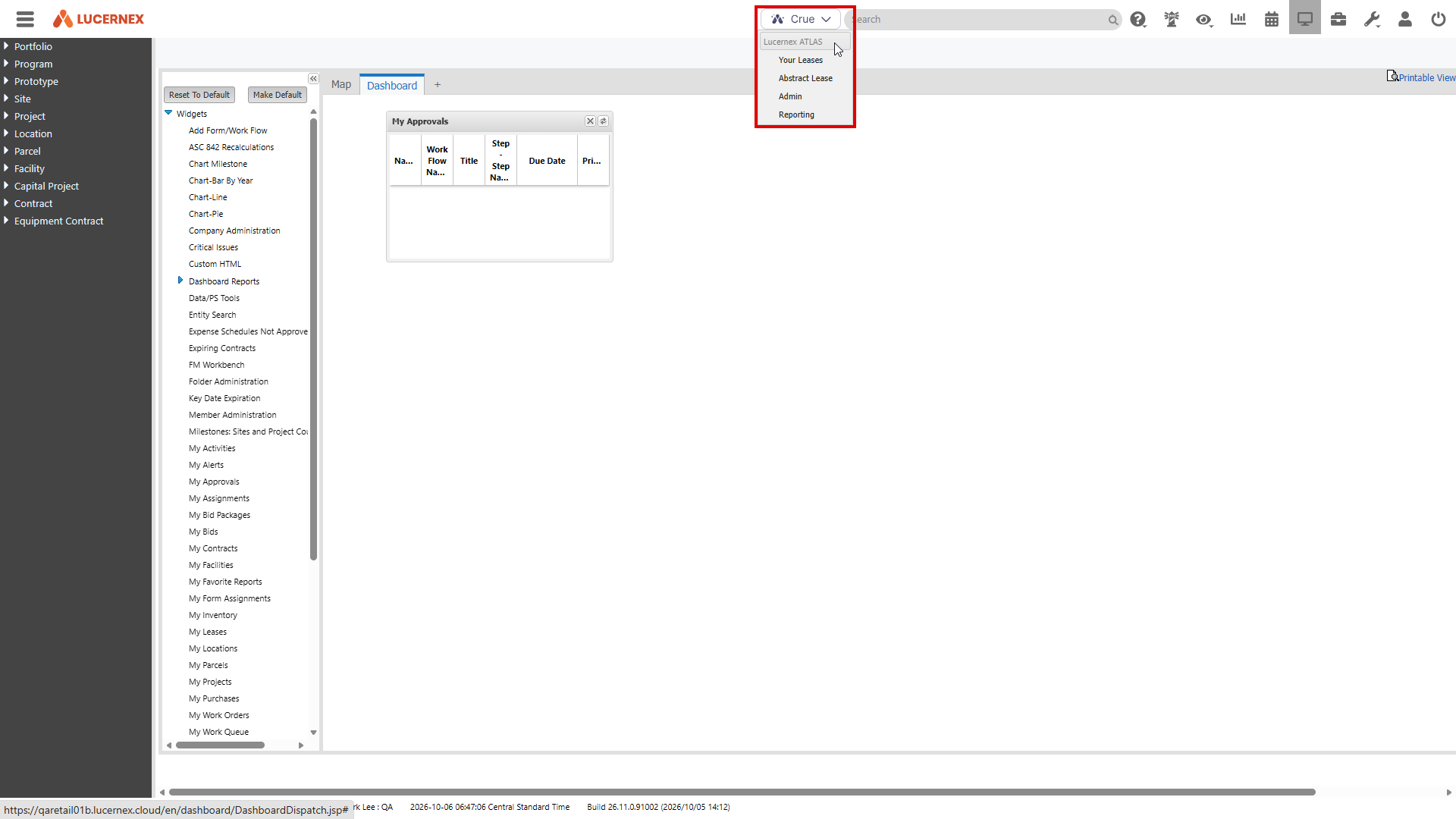
Master templates
LUC-21042
Use the new master templates in Lucernex ATLAS. Use the templates to abstract a lease and import the data into Lucernex.
-
OEM V4: A limited set of fields.
-
OEM Master V4: Every category of lease data you can abstract, including responsibility, term, and covenants.
Skip data that your organization doesn't need.
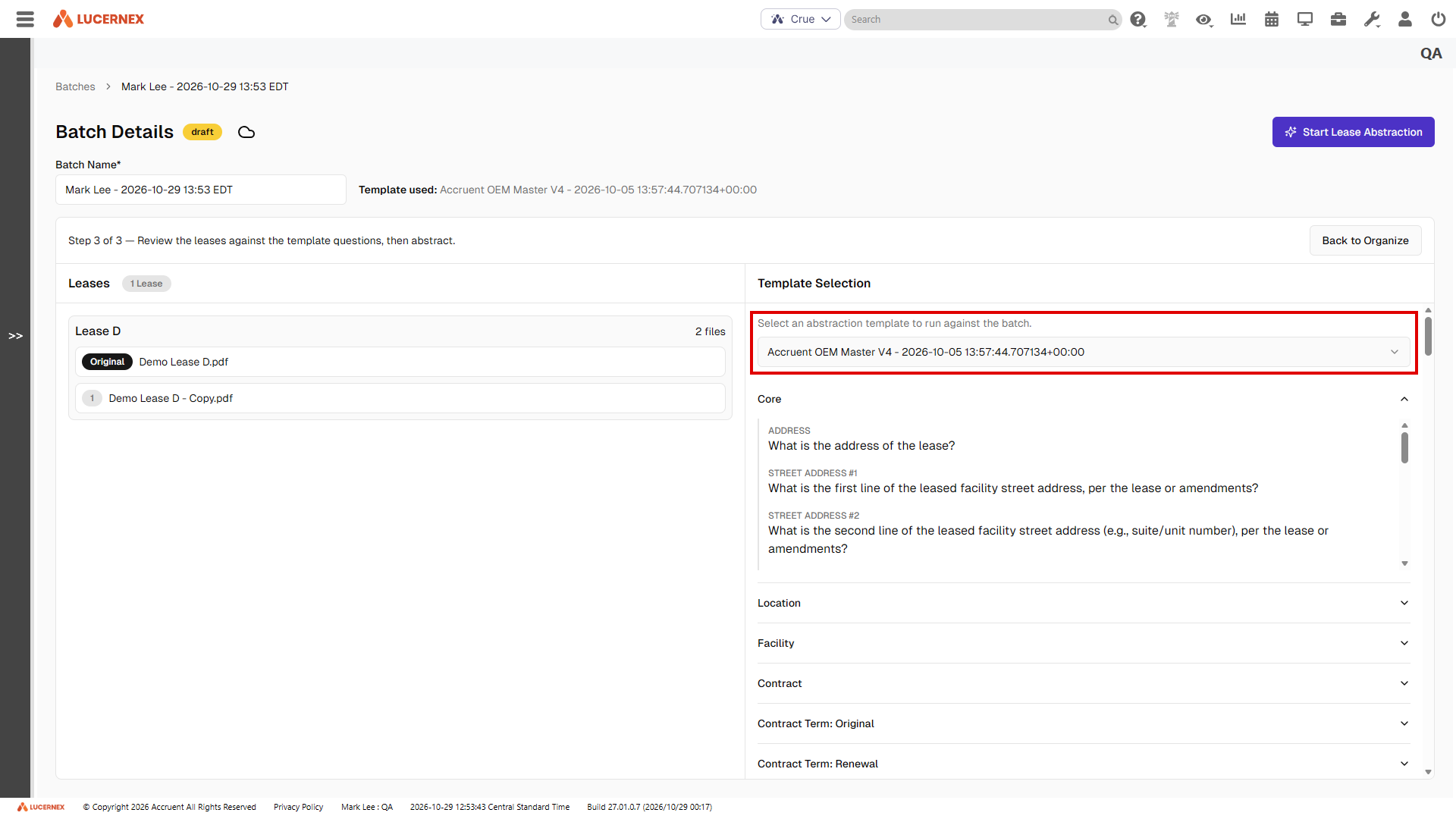
Core category mapping
LUC-21037, LUC-20904
Map your most important lease details in one place. The Core category in Lucernex ATLAS now includes more fields. This helps you map key fields correctly and import your lease data into Lucernex with confidence.
These fields are now in the Core category:
-
Portfolio: Moved from the Location category.
-
Street Address #1, City, State, and Country: Moved from the Location category.
-
Expiration Date: Moved from the Contract category, where it was labeled Expire Date.
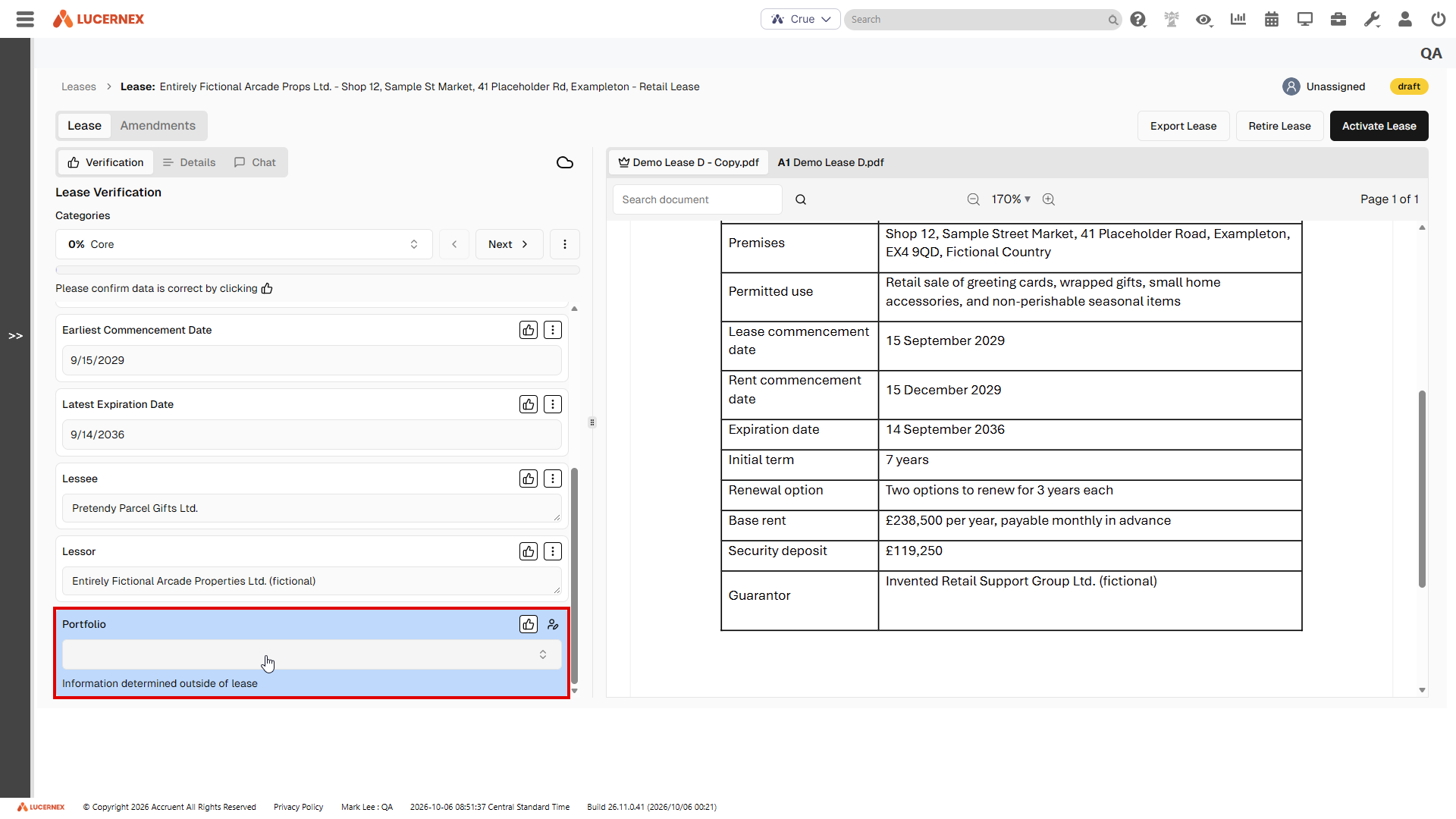
Filter, sort, and page leases
LUC-20546
Find and review your abstracted leases faster on the Your Leases page with new filtering, sorting, and page controls. This helps you organize and view large volumes of lease data.
-
Filter leases: Apply filters across columns, such as lease status, date ranges, or lease types to narrow the list.
-
Sort columns: Select a column header to sort data in ascending or descending order.
-
Navigate pages: Page through large datasets. Set your preferred rows per page and see the total record count.
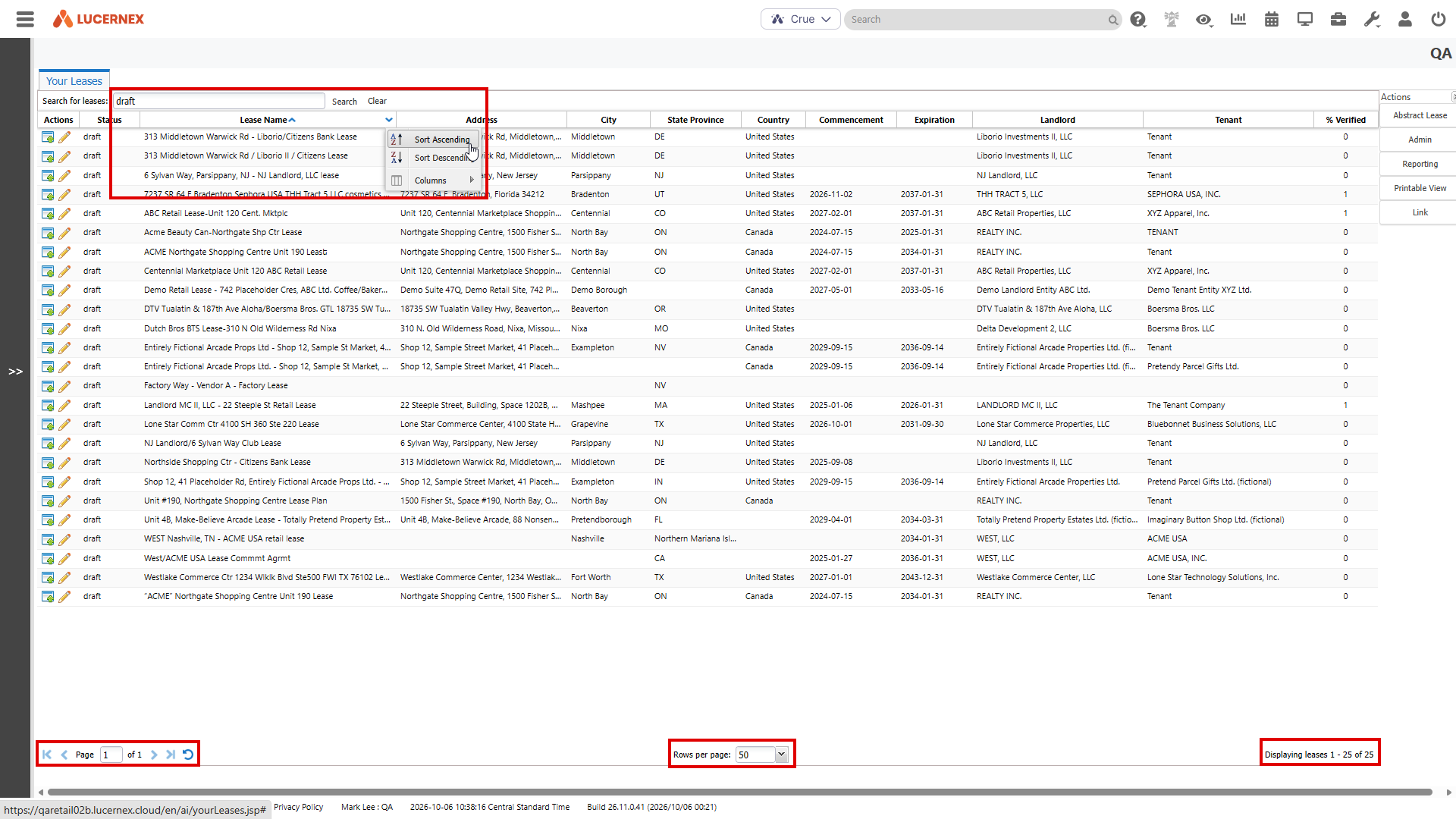
New columns on Your Leases
LUC-20609
We added the following columns to the Your Leases page to help you track where each lease came from:
-
Batch Name: Shows the batch you uploaded the lease in.
-
Template: Shows the template used to abstract the lease.
Lucernex ATLAS creates the Lease Name for you. To change it, open the lease and update the name on the Details tab.
Manage user access
LUC-21040, LUC-21121
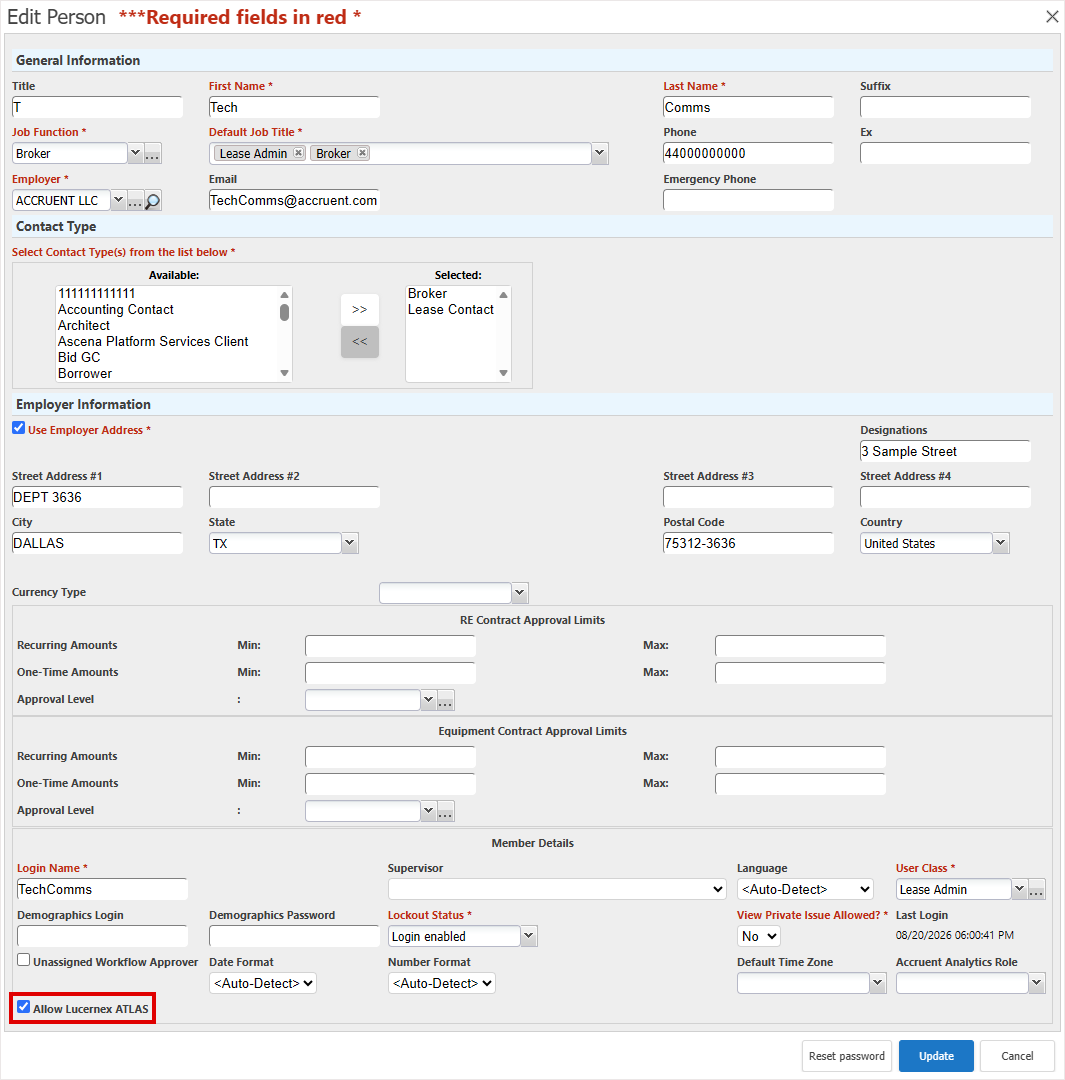
System administrators can now grant or remove access to Lucernex ATLAS. Select the Allow Lucernex ATLAS option on a member record to grant access. This helps your organization manage who can extract and review lease data. In prior releases, this was labeled Allow AI Lease Abstraction.
Percent rent breakpoints in Lucernex ATLAS
LUC-21194
Bring percent rent into Lucernex with the right breakpoint type. In Lucernex ATLAS, go to the Percentage Rent category and select a type from the new Breakpoint list. The list has the same three options as Lucernex:
-
Natural Breakpoint: Percent rent starts after sales cover the base rent.
-
Artificial Breakpoint: Percent rent starts after sales go over a set amount in the lease.
-
Count Based Rate: Percent rent is based on the number of units sold, such as movie tickets.
When you import the lease, Lucernex creates the percent rent record with the breakpoint type you selected. This works when you create a new contract and when you update one. You save time, and your percent rent data stays accurate.
Crue early adopter program
LUC-20690, LUC-21232, LUC-21151, LUC-21157
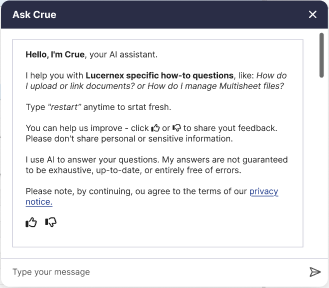
Early adopters can use Crue to get help without leaving Lucernex. Ask Crue, your AI assistant, a question and get a quick answer. Crue can summarize user guides and share links to more help.
This early adopter program is open to firms that use Auth0. Your firm needs Auth0 to use Crue and future Crue features.
Already use Auth0? Contact Accruent Support to turn on Crue for your firm. Don't use Auth0 yet? Move to Auth0, then contact Accruent Support to get started.
To open Crue, select the Crue icon in the lower-right corner of the screen.
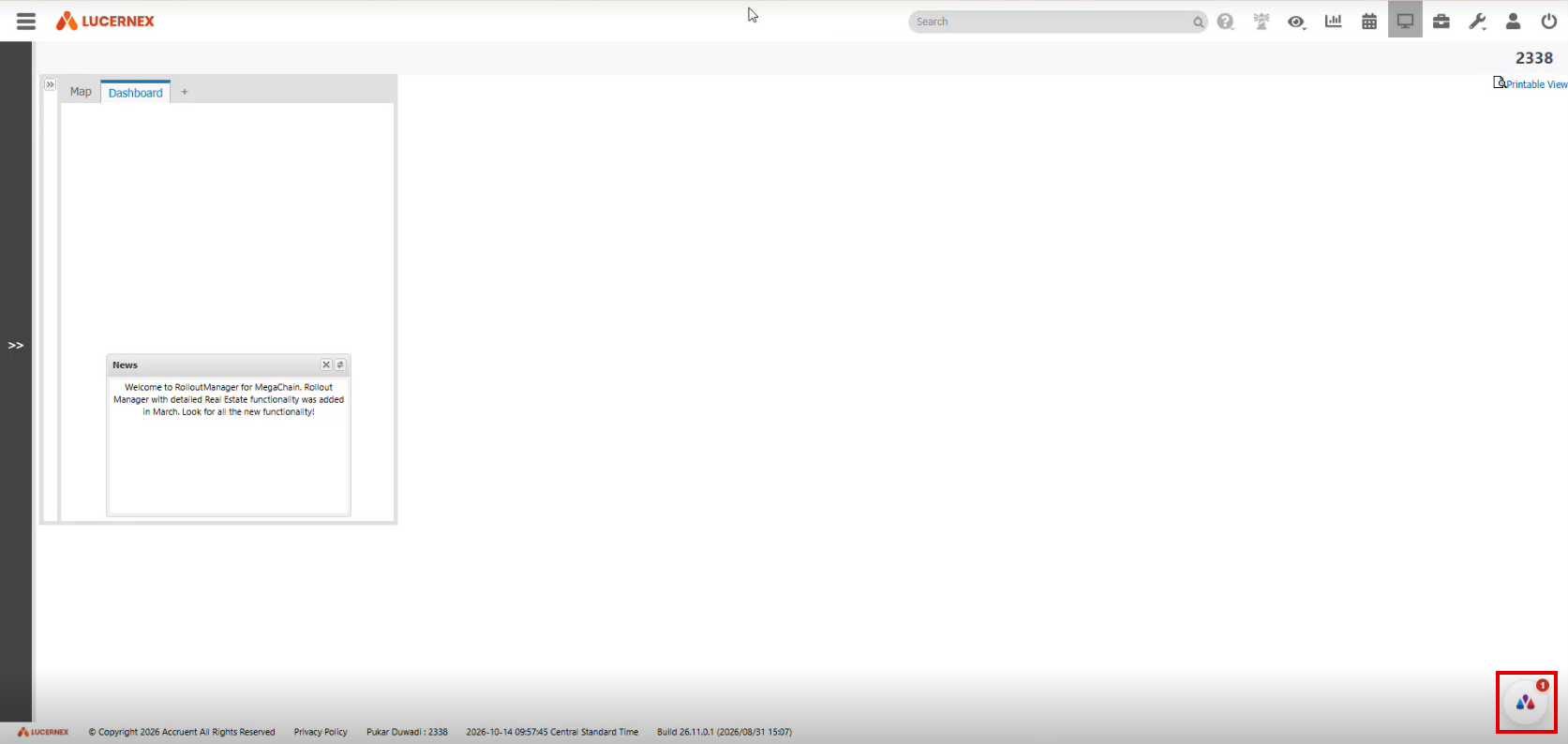
Crue opens in a side panel, so you can keep working while you chat.
-
Get fast answers: Ask questions in your own words.
-
Learn as you work: Get short summaries of user guides and links to more help.
-
Stay on your page: The chat panel stays open until you close it.
Crue knows which page you have open. Ask about "this contract" or "this page," and Crue uses details from the record you're viewing.
-
Uses the tab you see: Crue reads only the tab that's open on your screen.
-
Keeps records separate: When you open another record, Crue switches to details from that record.
-
Explains calculated fields: Ask Crue how a math field gets its value.
-
Works on more pages: Crue can read summary pages, list pages, custom lists, and the Contract Expense Forecast, Cost Tracking Summary, and Bid Package Summary pages.
Vendor reports
LUC-18254
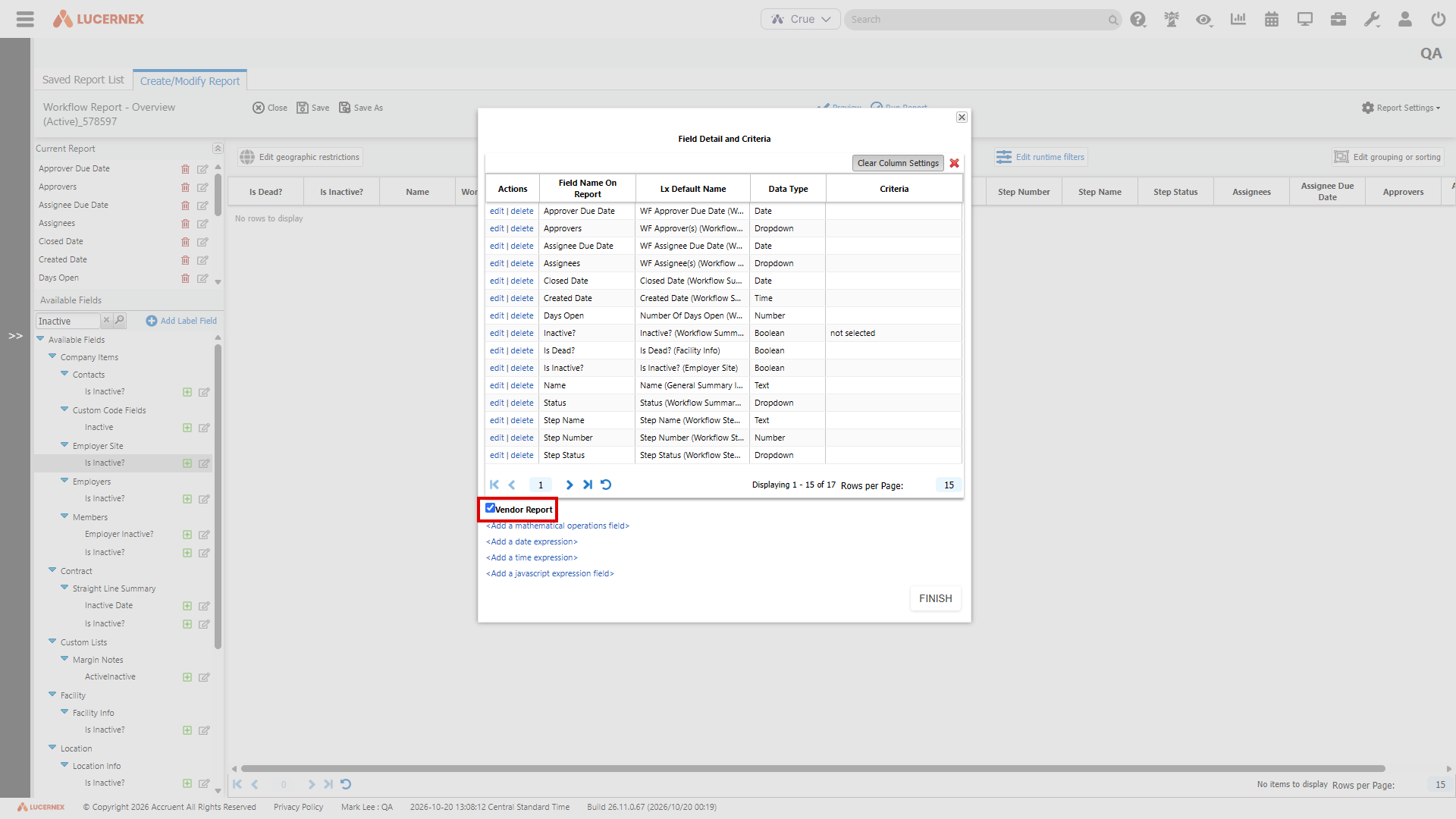
Share form and workflow reports with your vendors and keep each vendor's data private. When you edit a form or workflow report, select Vendor Report. When a vendor runs the report, they see only the records for their own company. This helps general contractors and other vendors track purchase orders, change orders, and payment applications across all their projects.
-
Keep vendor data private: Vendors see only the rows where the vendor matches their employer.
-
Set it up once: Share one report with all your vendors. Each vendor sees only their own data.
-
Use your current security: You don't need to change any user security settings.
Tips:
-
To keep the setting in place, give vendor users view access to reports. Anyone who can edit a report can change the setting.
-
Reports that run as scheduled jobs include data for all vendors. Ask vendors to sign in and run the report themselves.
Manitoba time zone update
HOST-1393768
Your dates and times for Manitoba, Canada, stay correct. Starting November 1, 2026, Manitoba stays at UTC-5 all year and no longer sets its clocks back in the fall. We updated Lucernex to follow the new rule.
-
Correct times: Lucernex shows the right time for the America/Winnipeg time zone from November 1, 2026.
-
No action needed: The update is automatic. You don't need to change any settings.
-
Ready on time: We made this update in every environment before the change took effect.
Database schema changes
Benefit from new fields added to the database schema for enhancements in this release. Update your page layouts to display new fields on customized pages.
Look for  in the lower-right corner of the dialog or window to identify customized pages.
View the Data Dictionary for a full list of all fields in your firm that you can use in custom reports, including those added by your organization and those added by this release.
Punch lists
These objects and fields, added as placeholders in Lucernex 26.9, now support punch lists.
PunchList
|
Field Name |
Type |
UI Label |
Description |
|---|---|---|---|
|
AssigneeMemberIDList |
Member ID |
Assignee |
Lucernex members assigned to the punch list. |
|
CodePunchListStatusID |
Dropdown (Punch List Status Code) |
Punch List Status |
Status of the punch list. This can be:
|
|
Description |
Text |
Description |
User description of the punch list. |
|
DueDate |
Date |
Due Date |
Date the punch list is due for completion. |
|
HasNotificationConfig |
Boolean |
Has Notification Config |
Reserved for future functionality. |
|
NumberOfCompletedTasks |
Number |
NumberOfCompletedTasks |
Number of tasks marked complete on the punch list. |
|
NumberOfTasks |
Number |
NumberOfTasks |
Number of tasks on the punch list. |
|
ProjectEntityID |
Entity ID |
ProjectEntityID |
System identifier for the project to which the punch list belongs. |
|
PunchListID |
Number |
PunchList RecID |
System identifier for the punch list. |
|
PunchListName |
Text |
Punch List Name |
Name given to the punch list. Required. Maximum 75 characters. |
PunchListAssignee
|
Field Name |
Type |
UI Label |
Description |
|---|---|---|---|
|
CodeJobTitleID |
Dropdown (Job Title Code) |
Assignee Job Title |
Job title assigned to the punch list (task). |
|
CodeUserClassID |
Dropdown (User Class) |
Assignee User Class |
User class assigned to the punch list (task). |
|
MemberID |
Member ID |
Assignee Member |
Lucernex member assigned to the punch list (task). |
|
PunchListAssigneeID |
Number |
PunchListAssignee RecID |
System identifier for the punch list assignee record. |
|
PunchListID |
Number |
PunchList RecID |
System identifier for the punch list. |
PunchListTask
|
Field Name |
Type |
UI Label |
Description |
|---|---|---|---|
|
AssigneeMemberIDList |
Member ID |
Assignee |
Lucernex members assigned to the punch list task. |
|
CodePunchListTaskStatusID |
Dropdown (Punch List Task Status Code) |
Task Status |
Status of the punch list task. This can be:
|
|
DocumentIDList |
Document List |
Attachments |
Documents attached to the punch list task. |
|
DueDate |
Date |
Due Date |
Date on which the punch list task is due for completion. |
|
HasAttachments |
Boolean |
Has Attachments |
Indicates whether documents are attached to the punch list task. |
|
HasLocationCoordinates |
Boolean |
Has Location |
Indicates whether the punch list task has location coordinates. |
|
HasNotificationConfig |
Boolean |
Has Notification Config |
Reserved for future functionality. |
|
LatitudeDegrees |
5-Digit Number |
Latitude |
Latitude of the punch list task location. |
|
LocationDescription |
Text |
Location Description |
Description of the punch list task location. |
|
LongitudeDegrees |
5-Digit Number |
Longitude |
Longitude of the punch list task location. |
|
Notes |
Text |
Notes |
Notes entered for the punch list task. |
|
PunchListID |
Number |
PunchList RecID |
System identifier for the parent punch list. |
|
PunchListTaskID |
Number |
PunchListTask RecID |
System identifier for the punch list task. |
|
TaskName |
Text |
Task Name |
Name entered for the punch list task. Required. Maximum 75 characters. |
PunchListTaskAssignee
|
Field Name |
Type |
UI Label |
Description |
|---|---|---|---|
|
CodeJobTitleID |
Dropdown (Job Title Code) |
Assignee Job Title |
Job title of the punch list task assignee. |
|
CodeUserClassID |
Dropdown (User Class) |
Assignee User Class |
User class of the punch list task assignee. |
|
MemberID |
Member ID |
Assignee Member |
Lucernex member assigned to the punch list task. |
|
PunchListTaskAssigneeID |
Number |
PunchListTaskAssignee RecID |
System identifier of the punch list task assignee member record. |
|
PunchListTaskID |
Number |
PunchListTask |
System identifier for the punch list task. |
SLSummary
We added these fields to SLSummary (Straight Line Summary). Use them to set your own starting accumulated amortization balance on ASC 842 and IFRS 16 accounting schedules. This helps your schedules start with the right balance.
|
Field Name |
Type |
UI Label |
Description |
|---|---|---|---|
|
AccumulatedAmortizationOverride |
Currency |
Starting Schedule Accumulated Amortization |
The opening accumulated amortization balance for the schedule. New schedules start at 0.00. When you recalculate a schedule, this field carries forward the balance from the last posted period of the prior schedule. You can change this value at any time. |
|
AccumulatedAmortizationAdjust |
Currency |
Starting Schedule Accumulated Amortization Adjustment |
Shows the difference between the Starting Schedule Accumulated Amortization value you entered and the value Lucernex calculated. Use it to keep a clear audit trail. This field is read-only. |
Improvements and issues fixed
|
Summary |
Reference # Case |
|
|---|---|---|
|
Dashboard |
The My Activities widget now displays tasks when all predecessors are complete. This includes tasks that start on or before the predecessor end date. |
LUC-18913 |
|
Schedule |
When an accounting schedule is posted through its final period, Prior Last Posted Period now populates on later schedules. This keeps opening balances accurate for journal entries and reports. |
LUC-20672 |
|
Schedule |
When a new accounting schedule follows a previous one, the prior last posted period now populates after you post all periods in the previous schedule. This ensures downstream journal entry integrations and roll-forward reports use accurate data. |
LUC-19613 |
|
Scheduled jobs |
Scheduled jobs now connect to the database again if the connection drops. Tasks continue running as expected. |
LUC-20550 |
|
Schedule |
When you select a project link in the My Activities widget, the schedule now opens in the spreadsheet view. |
LUC-18313 |
|
Reports |
When you run an XML report with Display multiple values in separate cells selected, budget values and totals now display as expected. |
LUC-19240 |
|
Security |
When you copy a user class, the new user class now gets all security settings from the original. This works even for user classes with many settings. |
LUC-21066 |
|
Integration |
When you select a link in VxMaintain, Lucernex now opens the related responsibility. If your company uses single sign-on (SSO), you sign in first and then go straight to the responsibility. |
LUC-20347 |
|
Reports |
For leases that use foreign exchange rates, ASC 842 and IFRS 16 schedule adjustments now use the rate from the start of the schedule. This includes Initial Direct Costs, Lease Incentive Amounts, Impairments, and other adjustment fields. These amounts now use the same rate as Initial Asset Balance in reports. |
LUC-19672 |
|
Advanced Reports |
Advanced reports that send emails with document attachments now download the documents and attach them to the email. |
LUC-20480 |
|
Change Order Cost Tracking |
When the Vendor is read-only on a change order form, the change order now saves the vendor from its purchase order. Reports now show the AP Vendor Number for these change orders. |
LUC-20927 |
|
Fields |
Time Zone now keeps its value when you edit a summary page. The value also stays in place when you save changes to other fields. |
LUC-20720 |
|
Expense Recovery Item |
When you edit an expense recovery item inline in Grouped Expenses, the Cap Amount Warning now appears only when the approved amount is more than the computed cap. When you edit inline, this now works the same as the Edit Expense Recovery Item dialog. |
LUC-16729 |